


Examples
 Decision Tree used in evPaeds (Electronic Virtual Paediatric Patients)
To see how the Decision Tree Editor was used in the evPaeds course, please follow the link the case 1:
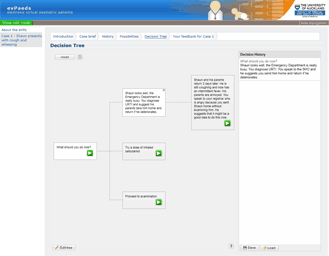
 Features of the Decision Tree Editor
Binary tree
This is an example of a binary (2 option) decision tree taken from ELSAC's exercises.
It contains options and responses. When the student chooses an option they a given another question (a response) to guide them through. Once they get to the end of a branch they will be given a final response which in this case is instant feedback if they have chosen the correct path or not.
Multi-node tree
This is an example of a tree that contains nodes with multiple options in this case 7 options.
There are few limitations to the tree:
- If you allow the editor to choose random node name you are limited to 100 nodes (however you may name all nodes you will escape this limitation)
- If you fill the viewable area of the tree it is possible to extend the viewable area, however not that once the area is wider than the content area of CourseBuilder, scrollbars will appear.
Using HTML
Here are some examples of HTML in the nodes.
You'll notice the root node has text color applied, bold text and tooltips.
You'll also find some links to external sites in some nodes.
One of the leaves (last node in a branch) contains an image.
Links beween trees
It is possible to link from one tree to another.
There are several reason why you may want to do this.
If the tree you wish to create is very large, you can break down the large tree into smaller trees and link the end of one tree to the root of another.
Another reason for linking trees is to allow students to go from one tree to the next without having to use the next/previous button. This mean a student may be directed to another tree in a non-linear order depending on the result of their decision.
Points reward
For students to keep track of their progress, you may add a points reward system.
This will keep a running total of the points depending on which node the student chooses.
It is also possible include negative points for incorrect choices.
Star reward
For students to keep track of their progress, you may add a star reward system.
This will keep a running count of how many nodes they have correctly chosen.
NOTE: it is not possible to keep a formal record of these points and should NOT be used for any formal assessment.

